Note: ABM3 v15.3.1 was the version used for the 2025 Regional Plan. If you need to install v15.3.1, please refer to Installing ABM3 v15.3.1.
Installing ABM3 
This page describes how to install ABM3. It also includes hardware and software requirements. In general, a powerful server is required to run the model. The main software required for the model includes EMME and Python. EMME is a commercial transportation modeling platform that must be purchased separately and requires a computer with a Windows operating system. Python is an open-source cross-platform programming language that is the core language of ActivitySim.
System Requirements 
ABM3 runs on a Microsoft Windows workstation or server, with the minimum and recommended system specification as follows:
Minimum specification:
-
Operating System: 64-bit Windows 7, 64-bit Windows 8 (8.1), 64-bit Windows 10, 64-bit Windows Server 2019
-
Processor: 24-core CPU processor
-
Memory: 1 TB RAM
-
Disk space: 500 GB
Recommended specification:
-
Operating System: 64-bit Windows 10
-
Processor: Intel CPU Xeon Gold / AMD CPU Threadripper Pro (24+ cores)
-
Memory: 1 TB RAM
-
Disk space: 1000 GB
In general, a higher CPU core count and RAM will result in faster run times as long as ActivitySim is configured to utilize the additional processors and RAM.
Note that the model is unlikely to run on servers that have less than 1 TB of RAM, unless chunking is set to active and in explicit mode (requires an upcoming version of ActivitySim 1.3)
Software Requirements 
To run ABM3, there are certain software that should be installed on your workstation including: EMME and Python3 package manager UV
The ABM3 model system is an integrated model that is controlled by and primarily runs in the EMME transportation planning software platform. EMME is used for network assignment, creating transportation skims, and the model’s Graphical User Interface (GUI). The software also provides functionality for viewing and editing highway and transit network files and viewing of matrix files. The Bentley CONNECTION Client software (the license manager for EMME) will need to be logged into and activated prior to running the model.
A Python package manager is software that creates an environment for an instance of Python. ActivitySim and related Python processes in the model are executed in an environment that is setup with a specific version of Python and specific library versions. This ensures that changes outside of the Python environment will not cause errors or change model results, and additionally ensure that the specific version of Python and specific libraries needed by the model do not cause errors or changes to other Python software installations on the server. The libraries needed by ActivitySim extend the base functionality of Python.
Installing ABM3 
Setting up the UV Python Environment 
As noted above, the user needs to install UV on the workstation they intend to install ABM3 on. UV is utilized to create a Python3-based environment required to run ActivitySim and other model components.
To install UV and create asim_151 environment using UV for all users on a server:
-
Create the following directories
-
C:\uv_env
-
C:\uv_env\uv_py
-
-
Open Power Shell (normal user, no admin)
-
cd into C:\uv_env
-
Run the following command
powershell -ExecutionPolicy ByPass -c {$env:UV_INSTALL_DIR = "C:\uv_env";irm https://github.com/astral-sh/uv/releases/latest/download/uv-installer.ps1 | iex} -
Close Power Shell
-
Under Environment Variables > System variables (requires Admin)
-
Add C:\uv_env to Path
-
Create new variable called UV_PYTHON_INSTALL_DIR and set to C:\uv_env\uv_py
-
Create new variable called UV_PYTHON_INSTALL_BIN and set to 0
-
-
Open Command Prompt (normal user, no admin)
-
Run the following command
uv python install 3.10 -
Under Environment Variables > System variables (requires Admin)
-
Create new variable called UV_PYTHON and set to path of python.exe from previous step’s installation
-
Hint: in command prompt, run the following command for the exact path:
uv python find- e.g., C:\uv_env\uv_py\cpython-3.10.18-windows-x86_64-none\python.exe
-
-
-
In command prompt, cd into C:\uv_env
-
Run the following commands (one at a time):
mkdir asim_151cd asim_151echo 3.10 > .python-versionuv init -
Open asim_151/pyproject.toml and edit the requires-python setting to:
requires-python = ">=3.10, <3.11" -
Back in command prompt (at C:\uv_env\asim_151), run one final command
uv add -r requirements.txt-
The requirements.txt will have to be saved under asim_151 or you will have to point to wherever it is saved
-
The requirements.txt is on the GitHub repo at: requirements.txt
-
The requirements.txt can also be found on T at: “T:\ABM\dev\ABM3\src\asim\scripts\requirements.txt”
- Ensure it is the latest
-
-
Open command prompt as admin and run the following command:
icacls C:\uv_env /reset /T- In testing, we found that every time a package is added to a UV environment, the package files will not have permission for all users so the reset from above needs to be executed
-
Under Environment Variables > System variables (requires Admin)
-
Create a new variable called activate_uv_asim_151 and set to the path of asim_151’s activate file
- E.g., C:\uv_env\asim_151\.venv\Scripts\activate
-
Azure Environment Variables 
Note: This section mainly relevant to SANDAG users.
When an ABM3 scenario finalizes, it loads onto Azure for post-processing. There are a number of system environment variables necessary to establish a connection to the Azure system.
To create those Azure system environment variables:
- Open PowerShell as Administrator
- Navigate (via cd command) to T:\ABM\software\PS1
- Execute .\ABM_Variables.ps1
- If you encounter an error message indicating the .ps1 file is not digitally signed, you may bypass the execution policy for your current PowerShell session by running:
Set-ExecutionPolicy -Scope Process -ExecutionPolicy BypassThen, re-execute ABM_Variables.ps1.
- If you encounter an error message indicating the .ps1 file is not digitally signed, you may bypass the execution policy for your current PowerShell session by running:
SQLCMD 
Note: This section mainly relevant to SANDAG users.
An installation of the sqlcmd utility is necessary to execute Transact-SQL statements directly in the command line. Within the ABM3 modeling framework, it is utilized to execute a command that identifies the next available Azure scenario ID in preparation for loading a finalized ABM3 scenario onto Azure.
To install the sqlcmd utility, download and execute the latest Microsoft Software Installer (i.e., .msi) file from the Microsoft sqlcmd GitHub repository (hint: sqlcmd-amd64.msi)
To verify successful installation of sqlcmd utility on your workstation:
- Copy GetScenarioId.bat somewhere onto your workstation
- Open command prompt
- Navigate (via cd command) to location where GetScenarioId.bat was copied to
- Execute the following command:
GetScenarioId.bat 9999 sqlcmdTest "dev"- Note: The steps under Azure Environment Variables must be executed beforehand
- If installation and command execution were successful, you should see the following:
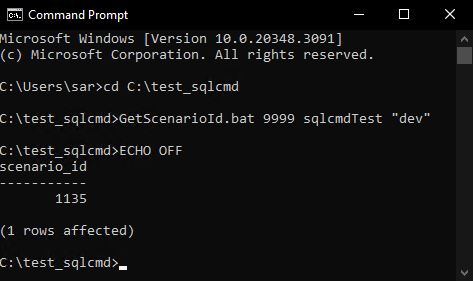
SQLCMD Utility Test